Find and copy the right Threads post link
Use the link to the specific public post, not its profile. ThreadsDL accepts threads.com and threads.net post URLs, and removes tracking parameters while retaining the post code.
Start with the complete guide: Threads download not working? Check these causes
Open downloaderThe address is the selector for everything that follows. This guide compares a complete post address with a profile that cannot identify attachments, then checks the resulting media against the original post. You do not need to manually rewrite .com to .net or remove tracking parameters; focus on the post code and the media’s actual owner post.
Before you begin
- A public post containing the relevant media and its complete link.
- A browser with file-download permission, a stable connection and enough free storage.
- Permission for the intended use; keep the original post address with your saved files.
Step-by-step walkthrough
Step 1: Open the downloader and prepare a small test
Open ThreadsDL in a regular browser tab. The current home page also accepts other video platforms, but this walkthrough uses the Threads post field and its image/video previews. Start with one public post and enough storage for one file before attempting a whole carousel.
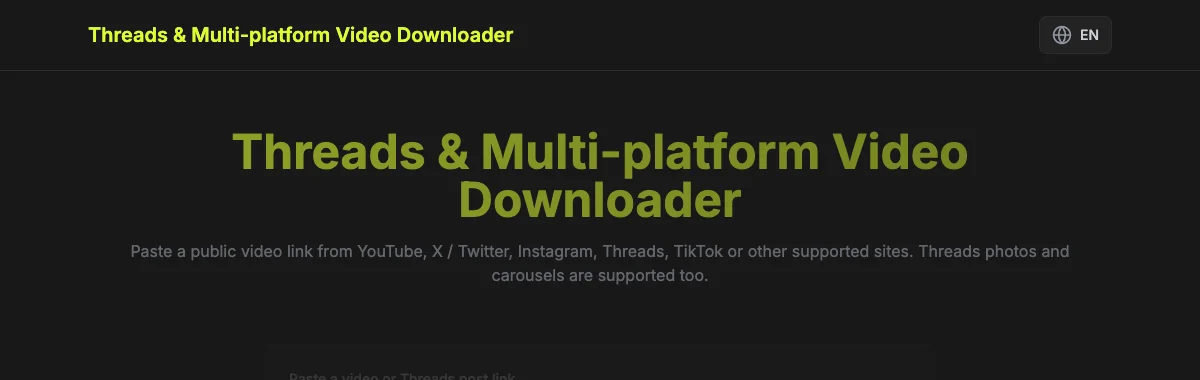
Keep the page open through parsing and saving. The first Download button requests the post’s attachments; it does not mean a file has reached your device. A result list is the sign that parsing worked. If it never appears, investigate the link or post accessibility before looking for a missing file.
Step 2: Paste the complete post address
Open the specific post in Threads and copy its link from sharing or the browser address bar. Paste the entire HTTPS address into the field. A typical post link contains /post/ and a post code; a profile stops at the username. Keep the post code intact.
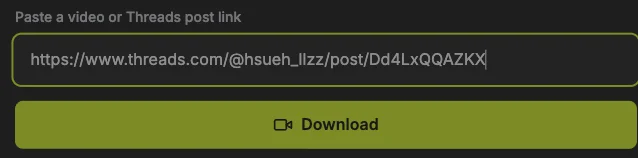
Compare the address with the screenshot, using your own post rather than the example. Sharing parameters can remain. If the photo or video is inside a reply or quoted post, open that media’s own post first. Copying the surrounding conversation can select different attachments.
Step 3: Recognize an invalid-link result
A profile link in the URL field produces the invalid-link message shown here. Check the address for the specific post code and copy the original post link again. A screenshot, caption or username is not a substitute for a complete post URL.
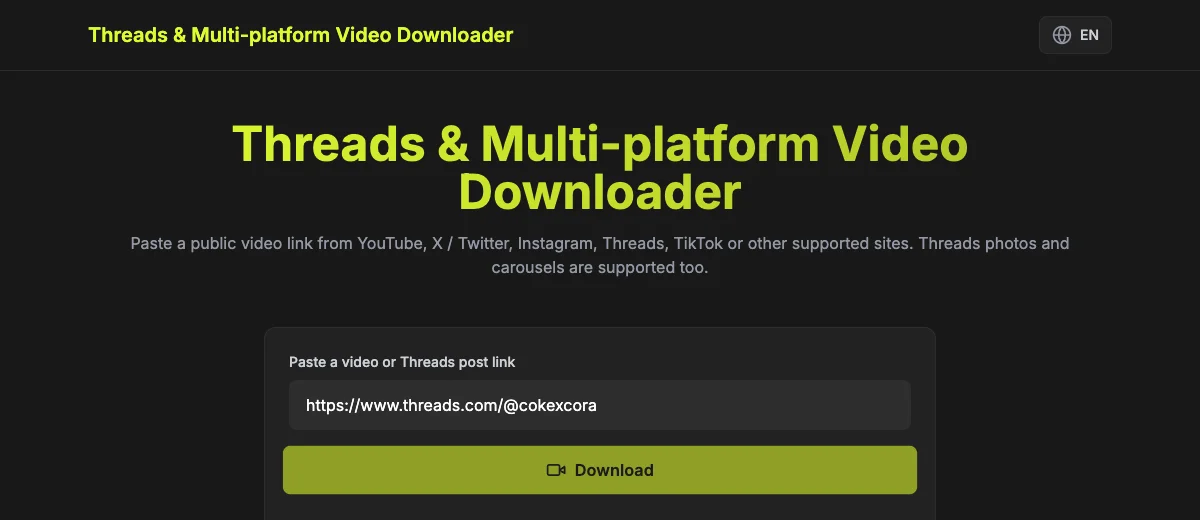
This example demonstrates an input error, not a private-post bypass. If the address is correctly formed but the post is unavailable, verify the source post’s visibility separately. Do not enter a password or keep changing the username at random; those actions do not restore deleted or inaccessible media.
Step 4: Load and inspect the attachments
Press the Download button below the URL field once. Wait for the result summary and previews. Read the attachment count, then check the first item and its format. This is the analysis stage; a video poster or an image on this page is not evidence that a file has been saved.
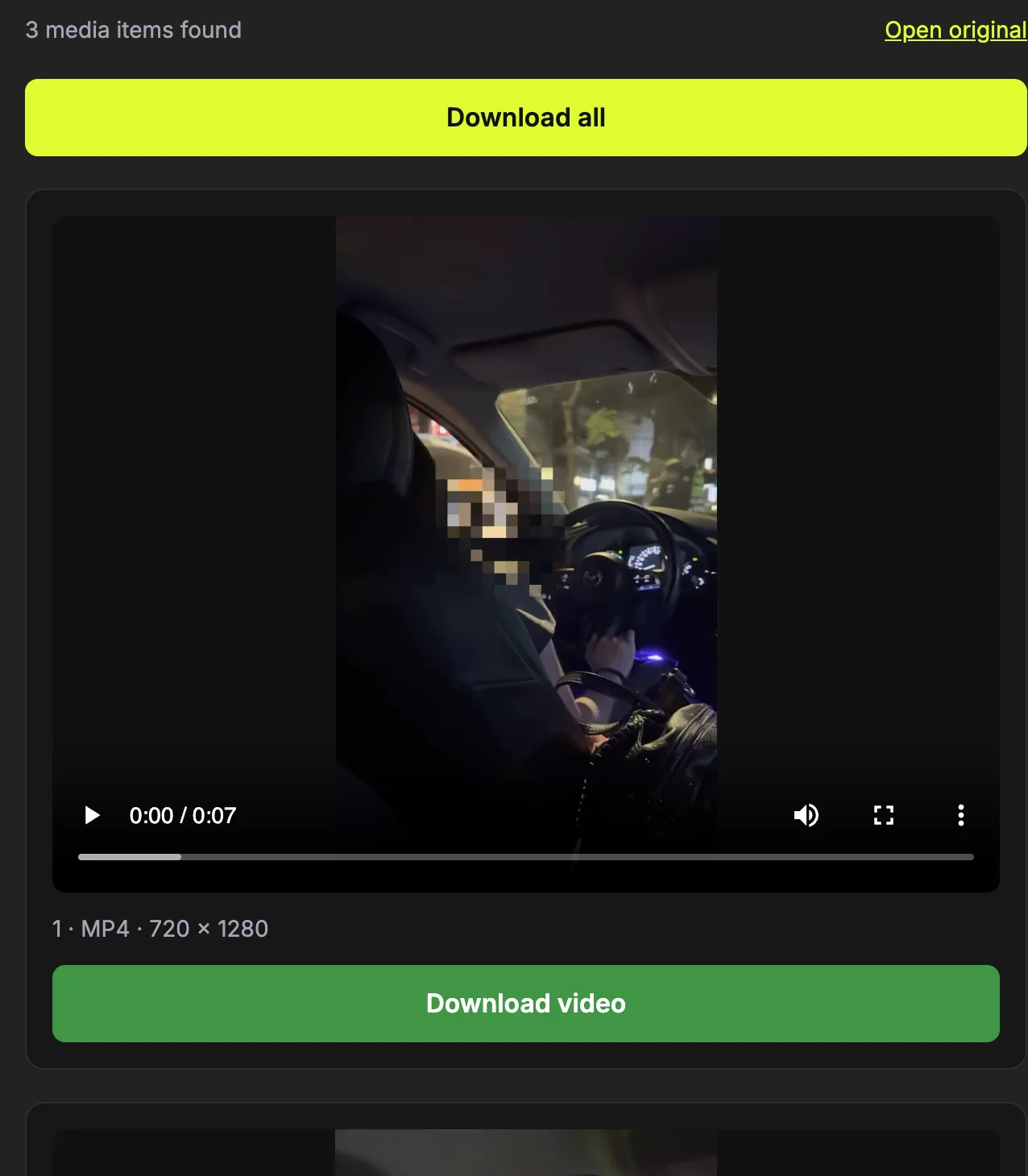
Use Open original to compare the result with the requested post if the count is unexpected. A video thumbnail belongs to that video and should not be counted as an extra photo. If there is an error instead of previews, note the exact message and correct the input or source access before repeating the request.
Recognize a post URL
A common form is https://www.threads.com/@username/post/POSTCODE. A profile URL ends at the username and does not identify an attachment. The downloader also supports a Threads /t/ post link; neither a screenshot nor plain copied text is a substitute for the address.
Related guide: Threads download not working? Check these causes
Use .com and .net without manual editing
Both current .com and older .net post links are accepted. Paste the whole HTTPS link. There is no need to change the host yourself or remove sharing query parameters. Do not paste a URL from a different download service as if it were a Threads post.
Get the link from the media’s actual post
A photo in a reply or a quoted post may belong to another post. Open that original post before copying its link. ThreadsDL lists attachments belonging to the requested post rather than gathering media from every visible reply.
Related guide: Download a Threads carousel: choose items and save all
Separate link errors from access errors
A correctly shaped address can still lead to a private, deleted or unavailable post. Check it on Threads before retrying. An invalid-link message asks you to correct the address; an unavailable-post message concerns visibility or source access. Never submit a password to fix either problem.
Related guide: Threads download not working? Check these causes
How to confirm the result
- The copied address identifies a specific post rather than a profile.
- The resolved attachments match that post, including replies or quotes.
- Sharing parameters were not mistaken for the essential post code.
Questions about this workflow
Must I remove sharing parameters?
No. Paste the complete link. The downloader normalizes supported post addresses while retaining their code; manually trimming the path can accidentally turn a valid link into an incomplete one.
Does /t/ work?
Supported Threads /t/ post links are accepted as well as common /@user/post/ links. A valid shape still does not guarantee public, accessible media; check the source post if retrieval fails.
Why did a quote return different media?
The quoted content may belong to its own original post. Open the post holding the intended attachment and copy that address. The tool uses the selected post rather than collecting the whole conversation.
Sources and screenshot notes
ThreadsDL production screenshot, 30 September 2026. Use your own public post; previews vary.
Screenshots use the public video and photo examples listed in the measurement record. They document the controls and observed results, not universal compatibility.