Threads download not working? Check these causes
First open the original post on Threads and confirm that it is public and contains a video or image. Copy its complete post link again, paste it into ThreadsDL and retry one attachment. Do not enter account credentials.
Open downloaderTreat download failure as three separate questions: did the address identify a post, did attachments load, and did a file finish saving? The screenshots show an invalid profile link followed by a valid result. Follow the branch that matches your symptom; this avoids deleting good files or repeatedly requesting a post that is already resolved.
Before you begin
- A public post containing the relevant media and its complete link.
- A browser with file-download permission, a stable connection and enough free storage.
- Permission for the intended use; keep the original post address with your saved files.
Step-by-step walkthrough
Step 1: Recognize an invalid-link result
A profile link in the URL field produces the invalid-link message shown here. Check the address for the specific post code and copy the original post link again. A screenshot, caption or username is not a substitute for a complete post URL.
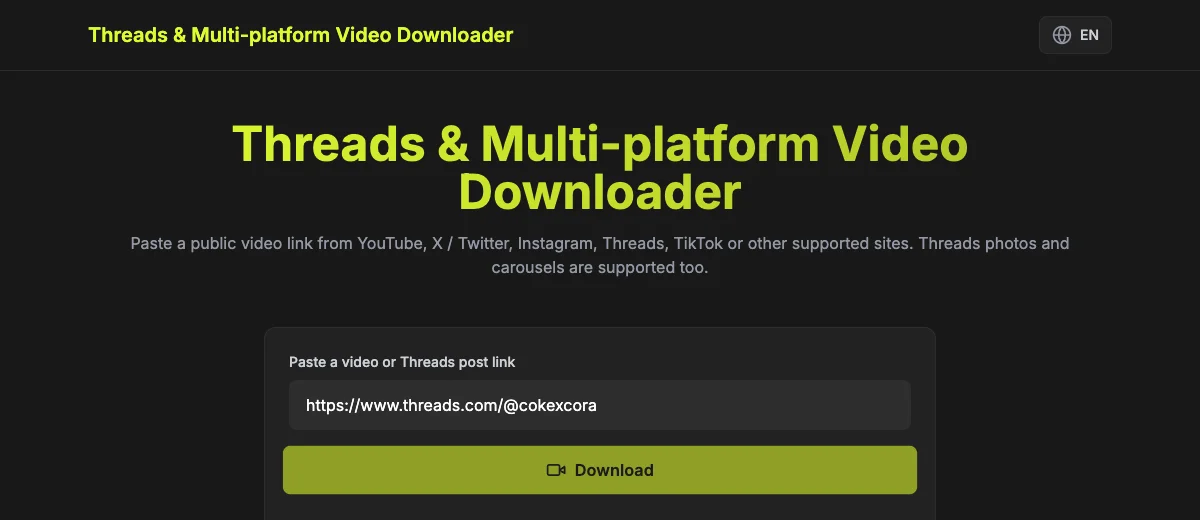
This example demonstrates an input error, not a private-post bypass. If the address is correctly formed but the post is unavailable, verify the source post’s visibility separately. Do not enter a password or keep changing the username at random; those actions do not restore deleted or inaccessible media.
Step 2: Paste the complete post address
Open the specific post in Threads and copy its link from sharing or the browser address bar. Paste the entire HTTPS address into the field. A typical post link contains /post/ and a post code; a profile stops at the username. Keep the post code intact.
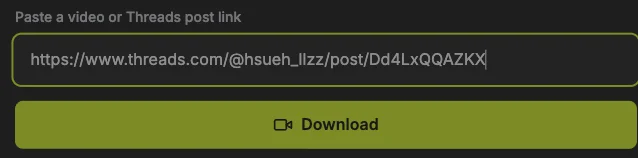
Compare the address with the screenshot, using your own post rather than the example. Sharing parameters can remain. If the photo or video is inside a reply or quoted post, open that media’s own post first. Copying the surrounding conversation can select different attachments.
Step 3: Load and inspect the attachments
Press the Download button below the URL field once. Wait for the result summary and previews. Read the attachment count, then check the first item and its format. This is the analysis stage; a video poster or an image on this page is not evidence that a file has been saved.
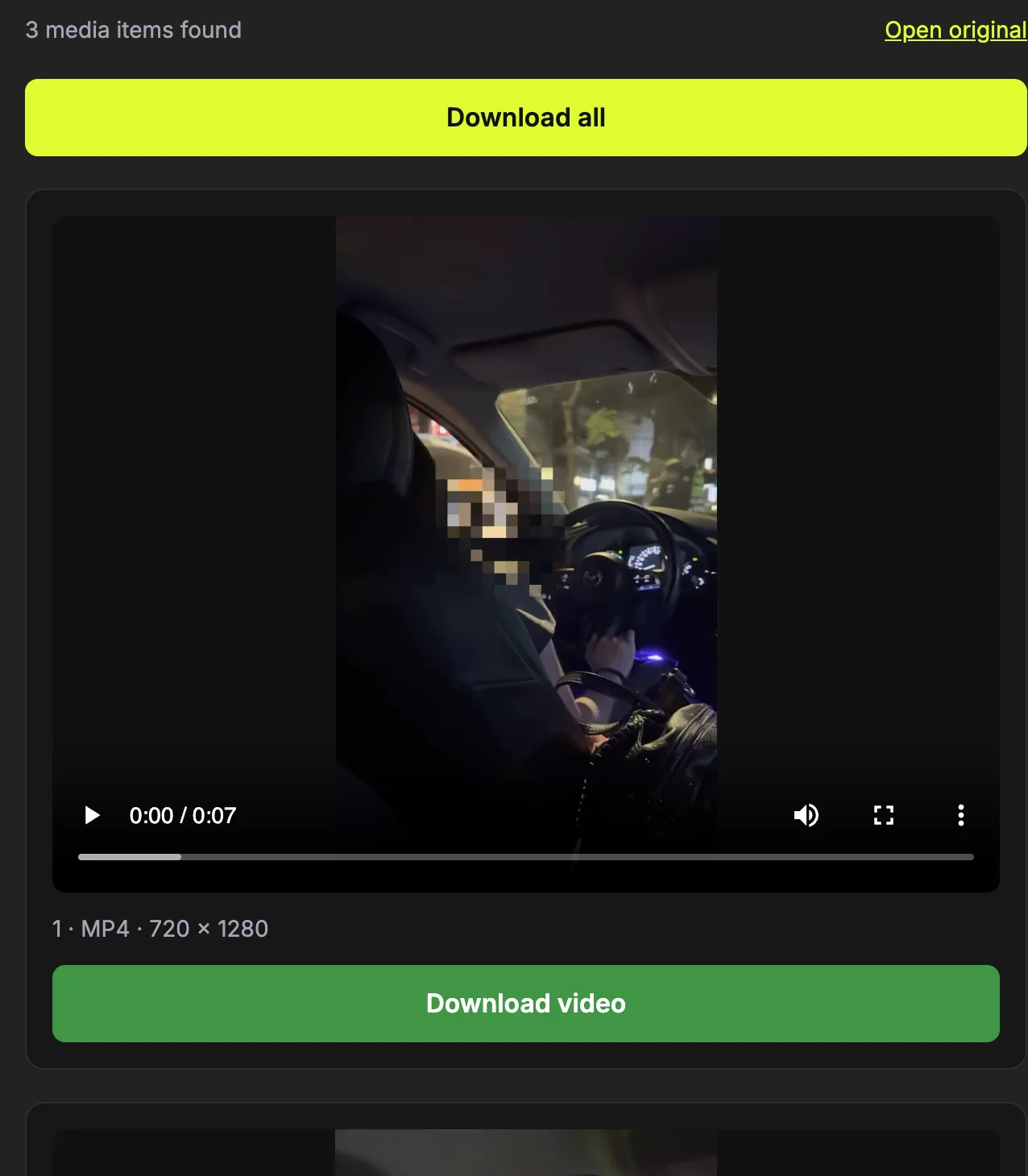
Use Open original to compare the result with the requested post if the count is unexpected. A video thumbnail belongs to that video and should not be counted as an extra photo. If there is an error instead of previews, note the exact message and correct the input or source access before repeating the request.
Step 4: Retry only the failed stage or attachment
Return to the point where the operation stopped. If the URL was invalid, replace it with the correct post link. If previews loaded but one save failed, first retry that attachment. If the media address expired, analyze the original post again to request fresh media information.
Check already completed files before Download all so you do not make unnecessary copies. A removed, private or text-only post is not repaired by repeated requests. For a temporary source or network failure, wait and try the same public post later. Describe the symptom precisely if you need help.
Step 5: Find the completed download before trying again
The screenshot shows the site’s Downloaded state. Next, open your browser’s downloads list and locate the corresponding filename. Open the entry or its file location. The page preview remains on the website; the downloaded file is the separate item managed by your browser.
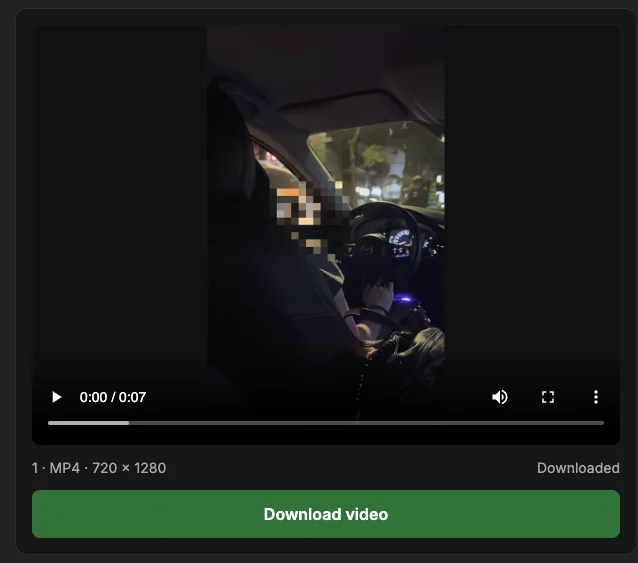
If an entry exists, check its status and size before repeating the download. If you moved the file, its old history entry may not locate it anymore. Search your chosen destination using the post code. Finding the file in storage and adding it to Photos or Gallery can be separate operations.
The link is invalid
Use a post URL such as https://www.threads.com/@username/post/POSTCODE. A profile address, copied text, screenshot or link to another service will not resolve. Both threads.com and threads.net post links are accepted. Check that the full address was pasted into the field.
Related guide: Find and copy the right Threads post link
The post is unavailable or has no media
A removed or private post is not downloadable through this service. A text-only post has no video or image to save. Media inside a reply or quote belongs to a different post: open that post and use its own link. Threads may also temporarily prevent the server from reading an otherwise public page.
The preview loads but the file fails
The media URL can expire or the source connection can fail. Analyze the post again to get a fresh link, then try one download. Keep the tab open, check free storage and review the browser’s download permissions. Download all may require permission for multiple files.
Related guide: Where downloaded Threads files go: check before retrying
The saved file is lower resolution than expected
Threads can expose a version smaller than the uploaded original. ThreadsDL selects an available version and does not reconstruct missing detail. Check actual pixel dimensions in the preview or downloaded file rather than assuming every video is 1080p or 4K.
Related guide: Threads video quality and audio: what an MP4 contains
The file is not in Photos or Gallery
Open the browser downloads list or file manager. Saving to the device and adding to the photo library can be separate actions. If several files were requested, check each download entry. Try one attachment at a time to distinguish a file-save issue from a post-resolution error.
Related guide: Where downloaded Threads files go: check before retrying
When retrying will not help
Private, deleted and text-only posts are outside this tool’s scope. It cannot recover removed media, bypass account privacy or download an entire profile. For temporary connection failures, try later with the original public post link.
How to confirm the result
- The corrected address points to the exact public post.
- A result or error clearly identifies the stage that needs attention.
- Completed items remain intact while only failed items are retried.
Questions about this workflow
Should I clear everything when one item fails?
No. Check completed browser entries first. Preserve working files and retry only the affected attachment; a carousel can succeed partly even when another transfer fails.
Can a valid URL still be unavailable?
Yes. A correct post address may point to removed, private or temporarily inaccessible media. Check the original post. Correcting URL syntax does not bypass the source’s access rules.
What information helps describe a failure?
Note whether you saw a link error, no attachments, a preview with a failed save, or a completed file missing from a gallery. Include the post URL and attachment number, never an account password.
Sources and screenshot notes
ThreadsDL production screenshot, 30 September 2026. Use your own public post; previews vary.
Screenshots use the public video and photo examples listed in the measurement record. They document the controls and observed results, not universal compatibility.