Download a Threads carousel: choose items and save all
Paste the carousel post link, check its ordered previews and select an item or Download all. Each attachment is saved as its own file; Download all does not create a ZIP archive.
Start with the complete guide: How to download Threads photos and carousels
Open downloaderA batch save is a collection of individual transfers. Before starting, decide whether you need all files or only a few, and make a list of the attachment numbers. Afterward, compare the saved filenames with that list. This method identifies a partial batch without guessing from the first success message or from the order shown by your file manager.
Before you begin
- A public post containing the relevant media and its complete link.
- A browser with file-download permission, a stable connection and enough free storage.
- Permission for the intended use; keep the original post address with your saved files.
Step-by-step walkthrough
Step 1: Paste the complete post address
Open the specific post in Threads and copy its link from sharing or the browser address bar. Paste the entire HTTPS address into the field. A typical post link contains /post/ and a post code; a profile stops at the username. Keep the post code intact.
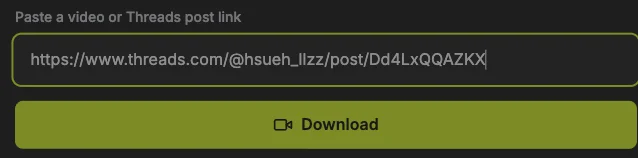
Compare the address with the screenshot, using your own post rather than the example. Sharing parameters can remain. If the photo or video is inside a reply or quoted post, open that media’s own post first. Copying the surrounding conversation can select different attachments.
Step 2: Load and inspect the attachments
Press the Download button below the URL field once. Wait for the result summary and previews. Read the attachment count, then check the first item and its format. This is the analysis stage; a video poster or an image on this page is not evidence that a file has been saved.
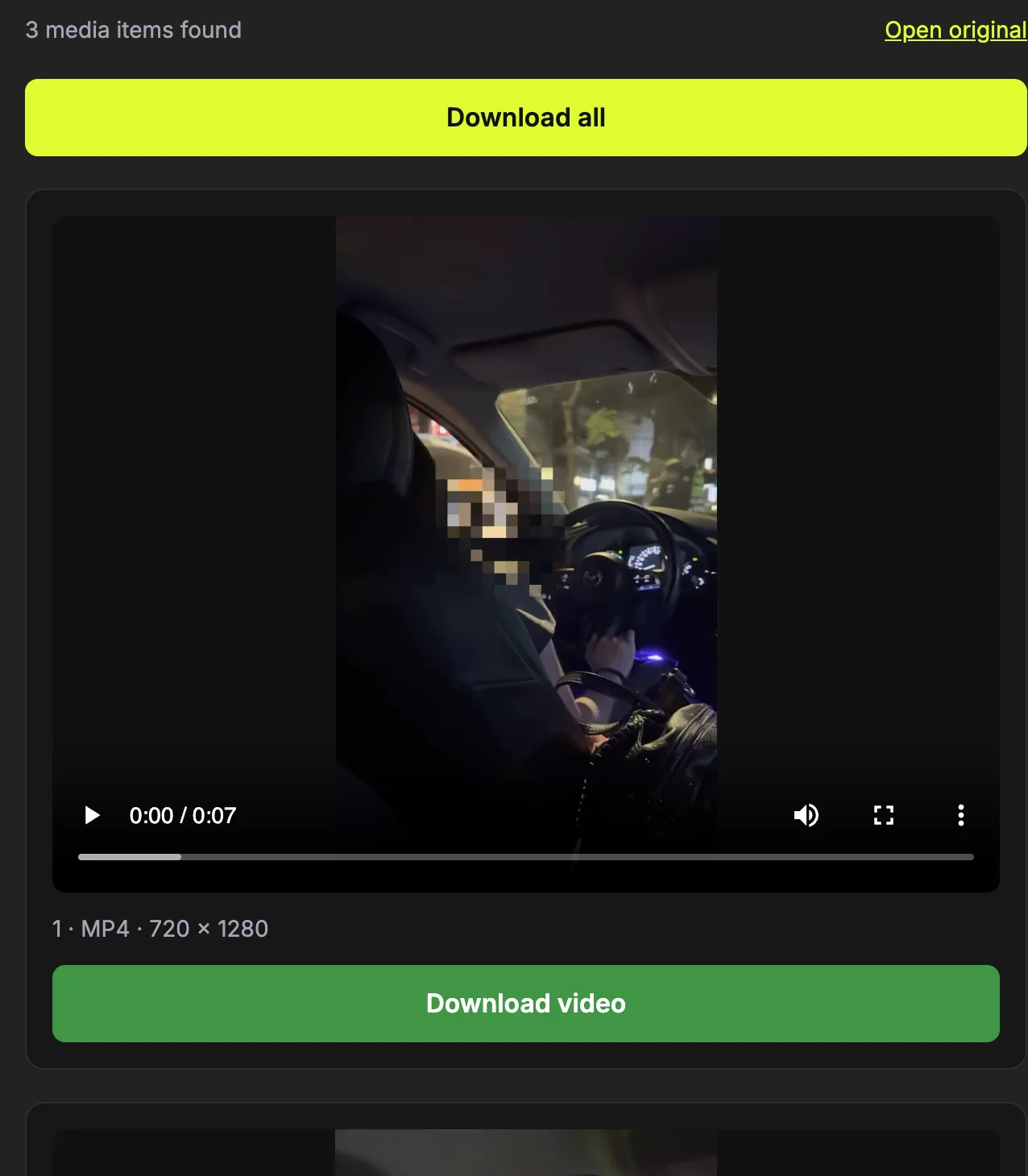
Use Open original to compare the result with the requested post if the count is unexpected. A video thumbnail belongs to that video and should not be counted as an extra photo. If there is an error instead of previews, note the exact message and correct the input or source access before repeating the request.
Step 3: Download a carousel in order
Read the result count and attachment numbers, then choose Download all. The tool requests the files sequentially, and the browser may ask permission for several downloads. Keep the tab open until the last requested item finishes; an early success message concerns one item.
Compare completed filenames with the attachment list. Each file has a post code and item number, so gaps identify an item to retry. There is no ZIP archive or merged video. If only one file arrives, first check browser permission and the remaining item states rather than parsing a different post.
Step 4: Keep the post code and item number when organizing
A typical filename is threads_POSTCODE_2.jpg or threads_POSTCODE_1.mp4. Match its number with the preview before renaming or moving it. For a multi-item post, those numbers are a simple way to reconstruct the order without relying on the file manager’s date sort.
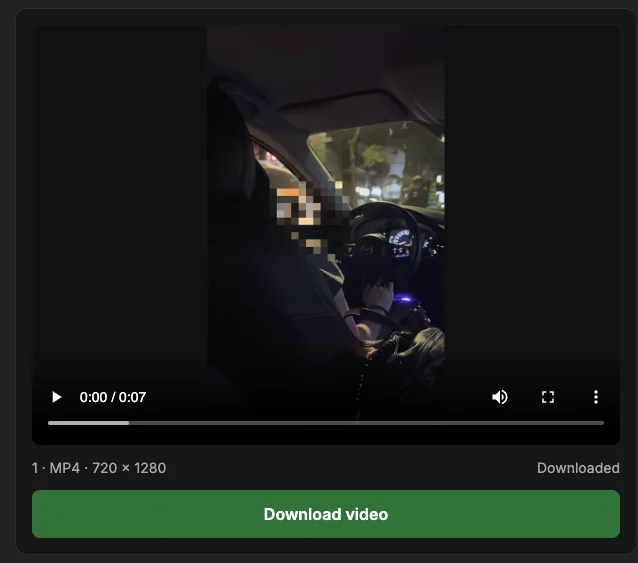
Create your own destination folder if useful, and preserve the extension. Repeating a download may cause the browser to add a suffix to avoid a name collision. Treat that suffix as a duplicate indicator, not a new attachment number. Keep the original post link alongside any file you plan to reuse.
Step 5: Retry only the failed stage or attachment
Return to the point where the operation stopped. If the URL was invalid, replace it with the correct post link. If previews loaded but one save failed, first retry that attachment. If the media address expired, analyze the original post again to request fresh media information.
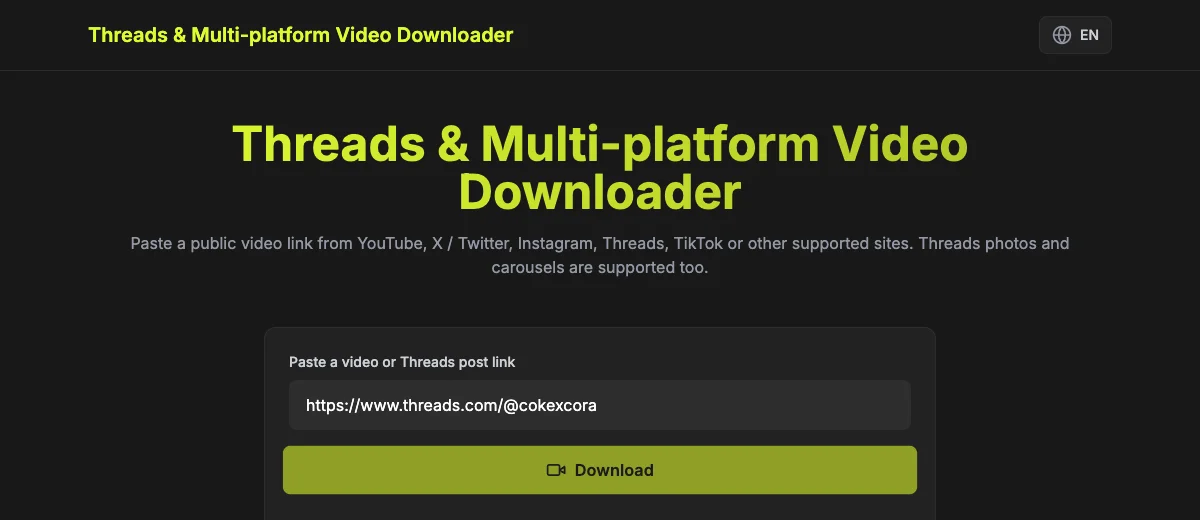
Check already completed files before Download all so you do not make unnecessary copies. A removed, private or text-only post is not repaired by repeated requests. For a temporary source or network failure, wait and try the same public post later. Describe the symptom precisely if you need help.
Identify the carousel you actually want
Use the post containing the attachments. Replies and quoted posts may have their own media and links. A profile address cannot select a carousel. Check the preview count and item numbers before saving files.
Related guide: Find and copy the right Threads post link
Understand mixed attachments
A carousel can contain photos and videos. Each item shows its format and download button. A video poster is only a preview of that video, not an extra downloadable photo. Do not count the thumbnail as another attachment.
Related guide: How to download Threads photos and carousels
Save all without losing the order
Files are downloaded sequentially. Their names include the post code and original attachment number, such as threads_POSTCODE_2.jpg. Keep these numbers when organizing files. There is no automatic ZIP, folder or stitched video; the browser saves each item separately.
Related guide: Where downloaded Threads files go: check before retrying
Recover from a partial batch
If the browser requests permission for multiple downloads, review that prompt. Check each saved item before retrying to avoid duplicate files. For a failed attachment, download that item individually or analyze the post again if its media link expired. A completed item does not guarantee the remaining items finished.
Related guide: Threads download not working? Check these causes
How to confirm the result
- Saved item numbers cover every attachment you requested.
- Photos and videos retain separate extensions and are not counted twice.
- Missing items are retried individually, with duplicates checked first.
Questions about this workflow
Where is the ZIP?
There is no ZIP from Download all. The browser receives separate files. If you need an archive, first confirm all items completed, then create it yourself using your device’s file tools.
Why are there more previews than expected?
Check the original post and item types. A mixed carousel can contain videos and photos, but the downloader does not return video thumbnails as separate photos or gather every visible reply.
Can I resume only missing items?
Yes. Identify their original numbers and use each item’s button. If the source link expired, analyze the post again, compare the list and avoid re-saving attachments you already have.
Sources and screenshot notes
ThreadsDL production screenshot, 30 September 2026. Use your own public post; previews vary.
Screenshots use the public video and photo examples listed in the measurement record. They document the controls and observed results, not universal compatibility.