Threads video quality and audio: what an MP4 contains
ThreadsDL saves an available MP4 rather than improving its resolution. Audio is preserved when the source file has an audio track. A higher resolution in post metadata does not guarantee a downloaded file with those dimensions.
Start with the complete guide: How to download Threads videos as MP4
Open downloaderQuality checks need a reproducible comparison: the same attachment, its loaded preview and its saved file. Compare dimensions before judging the size of the file, and inspect audio independently. The sample record demonstrates a mismatch between advertised and decoded dimensions; it gives a method for checking, not a universal resolution target.
Before you begin
- A public post containing the relevant media and its complete link.
- A browser with file-download permission, a stable connection and enough free storage.
- Permission for the intended use; keep the original post address with your saved files.
Step-by-step walkthrough
Step 1: Paste the complete post address
Open the specific post in Threads and copy its link from sharing or the browser address bar. Paste the entire HTTPS address into the field. A typical post link contains /post/ and a post code; a profile stops at the username. Keep the post code intact.
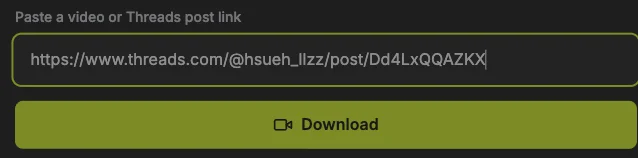
Compare the address with the screenshot, using your own post rather than the example. Sharing parameters can remain. If the photo or video is inside a reply or quoted post, open that media’s own post first. Copying the surrounding conversation can select different attachments.
Step 2: Load and inspect the attachments
Press the Download button below the URL field once. Wait for the result summary and previews. Read the attachment count, then check the first item and its format. This is the analysis stage; a video poster or an image on this page is not evidence that a file has been saved.
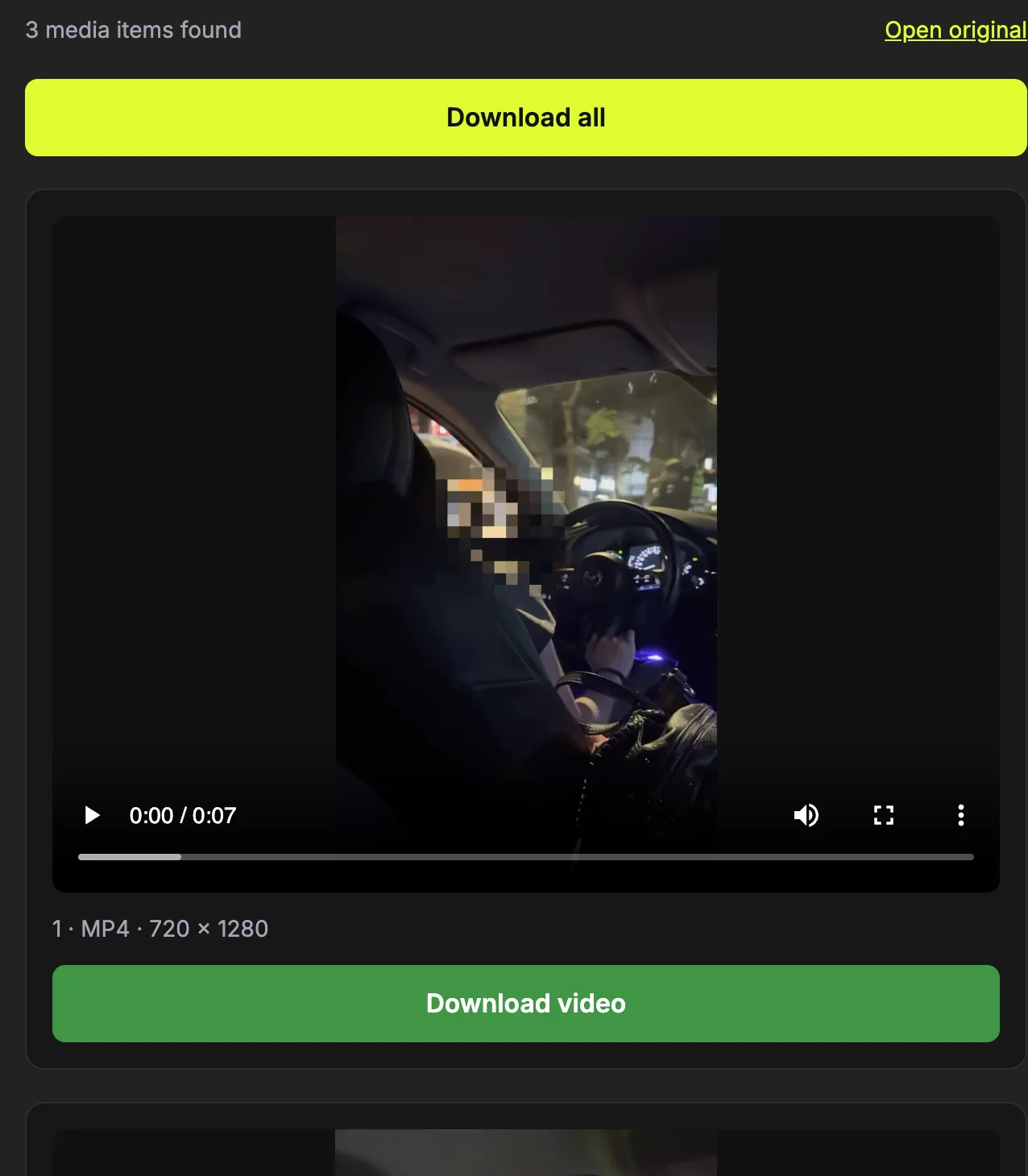
Use Open original to compare the result with the requested post if the count is unexpected. A video thumbnail belongs to that video and should not be counted as an extra photo. If there is an error instead of previews, note the exact message and correct the input or source access before repeating the request.
Step 3: Read decoded dimensions, then check the saved version
Wait for the preview to load and read the pixel dimensions next to the attachment format. Width and height describe the decoded file, not just the numbers advertised in the post. Portrait dimensions must be read in their displayed order; a taller image is not automatically higher quality.
Download that same item and compare its file information in a viewer or player. The measured sample was 720×1280 despite 1080×1920 post metadata. Use this as an example of why inspection matters, not a promised size for another post. Missing detail cannot be recovered by repeatedly saving the same version.
Step 4: Test audio independently of the picture
Play the video preview, then check player volume and the device’s audio output. Save the MP4 and play it in a local player as a second check. A muted tab, player or device can make a file with an audio track sound silent, so change one setting at a time.
The documented sample contains H.264 video and AAC audio. That confirms those sample tracks; it does not establish every post’s codec or guarantee that an originally silent video has sound. The Threads route saves the available MP4 and does not provide an MP3 extraction control.
Step 5: Wait for the save and inspect the actual file
Watch the preparation status and wait for Downloaded. Then check the browser’s completed downloads and open the saved file. This second check matters: the site status describes its transfer, while the browser manages the final filename and destination on your device.
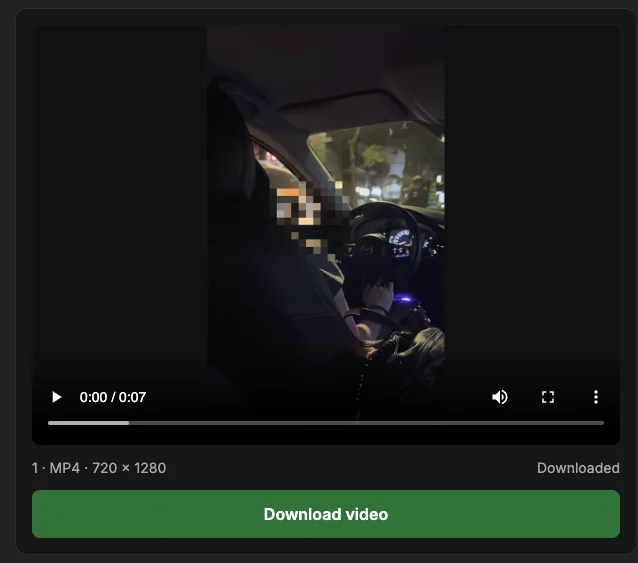
For a video, play the beginning and a later point; for an image, open it at a useful zoom. Record the filename before moving it. If the browser entry is incomplete or reports an error, do not treat a visible preview as a successful save. Retry the affected item after checking the connection and storage.
Available version versus original upload
Threads can publish several video versions. The downloader selects the available variant with the largest advertised dimensions. It cannot retrieve an original upload that the public post does not expose. Repeating the download cannot restore details absent from that file.
Related guide: How to download Threads videos as MP4
Use decoded dimensions to judge resolution
The preview reads the video file’s actual decoded width and height. During the site’s download verification, one three-video post advertised 1080×1920 while all three saved MP4 files decoded at 720×1280. That is a measured example, not a rule for every Threads post.
Related guide: Threads image download vs screenshot: detail and file choice
Check the audio track before blaming volume
MP4 is a container and may include video and audio tracks. Our three-video verification found H.264 video and AAC audio; other source files may differ. Check player volume and device audio. A silent source cannot gain sound through downloading, and this tool does not extract MP3.
Keep processing claims separate
ThreadsDL does not upscale videos, remove existing marks or re-encode a higher-quality version. Its own watermark is not added. If a preview is clear but saving fails, investigate the connection or expired media link rather than changing an unsupported quality setting.
Related guide: Threads download not working? Check these causes
How to confirm the result
- You compared the same item in preview and saved file.
- You recorded decoded width and height, not just advertised numbers.
- You distinguished missing audio from a muted player or device.
Questions about this workflow
Does a large file mean 4K?
No. File size also depends on duration, encoding and content. Pixel dimensions are the useful first check for resolution; even a large MP4 can be lower resolution than expected.
Are H.264 and AAC guaranteed?
No. Those codecs were observed in the documented samples. Other accessible source files may differ; check the saved file rather than assigning every post the sample’s properties.
Can the tool recover a silent source?
No. A source with no audio track will remain without that track. Check volume and output if sound is expected; the Threads download route does not synthesize or extract audio.
Sources and screenshot notes
ThreadsDL production screenshot, 30 September 2026. Use your own public post; previews vary.
Screenshots use the public video and photo examples listed in the measurement record. They document the controls and observed results, not universal compatibility.