Download Threads videos on a phone: browser workflow
Use the browser workflow: copy a public post link, open ThreadsDL, paste the link and choose an attachment. Keep the tab open until the file finishes downloading; check browser downloads before looking in your photo library.
Start with the complete guide: How to download Threads videos as MP4
Open downloaderThe phone workflow crosses two apps: Threads supplies the post link, while a browser manages the download. That handoff and the later move into Photos are different operations. This guide keeps them separate and uses a narrow Chromium screenshot to show where the website’s controls appear, without presenting it as a tested iPhone or Android system menu.
Before you begin
- A public post containing the relevant media and its complete link.
- A browser with file-download permission, a stable connection and enough free storage.
- Permission for the intended use; keep the original post address with your saved files.
Step-by-step walkthrough
Step 1: Use the narrow browser layout on a phone
Copy the post link, switch to your browser and paste it into ThreadsDL. On the narrow layout, each preview and its button occupy their own space. Scroll past the preview to find the save control, and start with one attachment before requesting multiple downloads.
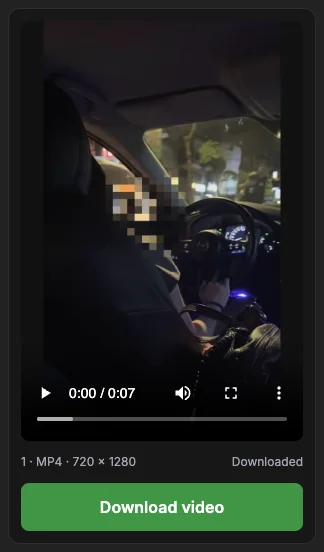
The screenshot shows Chromium at a phone-sized viewport, not an iOS or Android system screen. Browser menus and storage locations differ. Keep the tab active during preparation and avoid closing it when switching back to Threads; first confirm that the browser recorded a completed file.
Step 2: Paste the complete post address
Open the specific post in Threads and copy its link from sharing or the browser address bar. Paste the entire HTTPS address into the field. A typical post link contains /post/ and a post code; a profile stops at the username. Keep the post code intact.
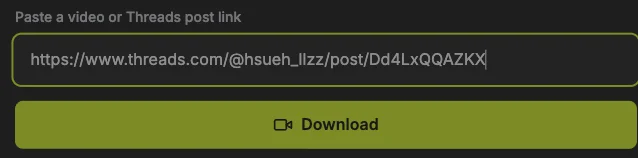
Compare the address with the screenshot, using your own post rather than the example. Sharing parameters can remain. If the photo or video is inside a reply or quoted post, open that media’s own post first. Copying the surrounding conversation can select different attachments.
Step 3: Load and inspect the attachments
Press the Download button below the URL field once. Wait for the result summary and previews. Read the attachment count, then check the first item and its format. This is the analysis stage; a video poster or an image on this page is not evidence that a file has been saved.
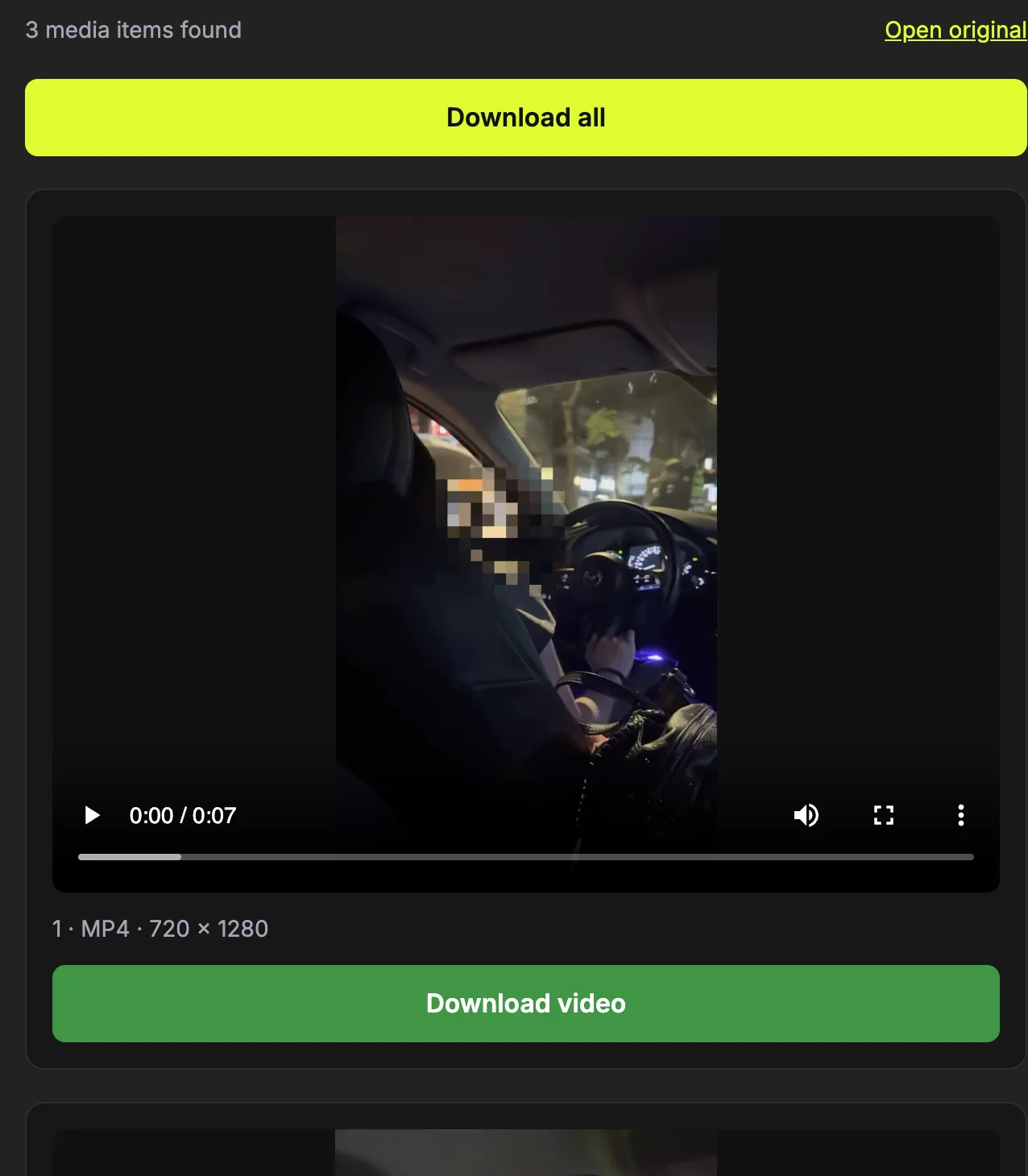
Use Open original to compare the result with the requested post if the count is unexpected. A video thumbnail belongs to that video and should not be counted as an extra photo. If there is an error instead of previews, note the exact message and correct the input or source access before repeating the request.
Step 4: Choose the video you actually need
Scroll to the intended attachment and confirm its number and MP4 label. Use the player to verify that its content matches the post. In the sample, three separate previews belong to one post, so the second item’s button saves only that item rather than a stitched version of all three.
Press Download video beside that preview. Leave the tab open while the file is prepared. The play button starts a preview; it is a different control from the save button. If playback succeeds but saving fails, the post has already been resolved and the next check concerns the file transfer.
Step 5: Wait for the save and inspect the actual file
Watch the preparation status and wait for Downloaded. Then check the browser’s completed downloads and open the saved file. This second check matters: the site status describes its transfer, while the browser manages the final filename and destination on your device.
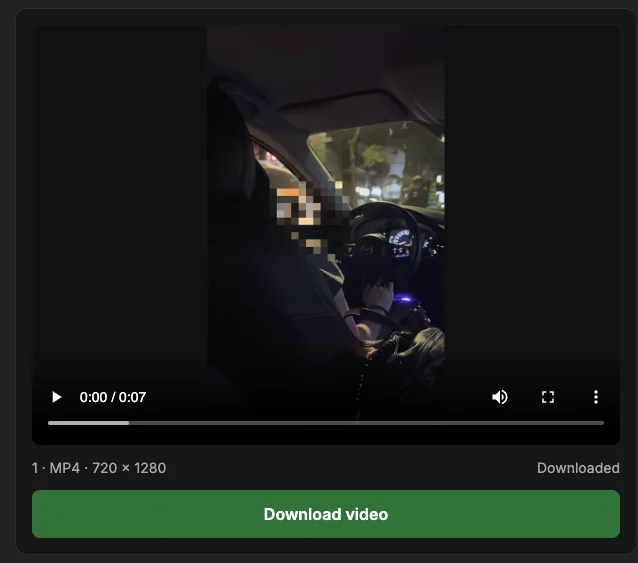
For a video, play the beginning and a later point; for an image, open it at a useful zoom. Record the filename before moving it. If the browser entry is incomplete or reports an error, do not treat a visible preview as a successful save. Retry the affected item after checking the connection and storage.
Step 6: Add a finished file to a photo library if needed
First open the completed file from your browser or file manager. On iPhone or iPad, Apple documents Files → Browse → iCloud Drive → Downloads as one download location. A custom Safari destination can differ; the file is not necessarily in Photos.
Use the device’s available sharing or saving control if you want it in a photo library. Do this only after confirming the file is complete. This screenshot is the website’s narrow layout, not the Files app or a tested sequence for every phone. Check the linked browser and device instructions for their current menus.
Move from the Threads app to the browser
Open the specific post, use its sharing menu to copy the link, then switch to ThreadsDL in your browser. Copying a username or profile URL is not enough. If the sharing options differ, open the post in a browser and copy the complete address.
Related guide: Find and copy the right Threads post link
Preview first, then save
The first Download button loads attachments; the button beside the preview saves the actual file. Check the item number in a carousel. Start with one video so you can verify that the browser permits file downloads before requesting several files.
Related guide: How to download Threads videos as MP4
Avoid interrupted mobile downloads
Do not close or reload the downloader while it is preparing the file. A weak connection or low storage can interrupt a download. The tool does not need a new app or your Threads password. Mobile browsers differ in where they store files and how they request download permission.
Related guide: Threads download not working? Check these causes
Use the correct next step
If the file was saved but is missing from Photos or Gallery, check the browser download list and file manager. If no attachment appears, confirm that the post is public and use its complete link. This browser workflow is not a claim that every browser or phone version has been tested.
Related guide: Where downloaded Threads files go: check before retrying
How to confirm the result
- One attachment has a completed browser download entry.
- You can open the file before trying to move it to a gallery.
- The tab remained open until file preparation finished.
Questions about this workflow
Must I install another app?
No extra app is required for the website workflow. Use a browser that allows file downloads. A file manager or photo app may handle the saved file afterward, depending on the device.
Why does the photo library not show it?
A browser download can be stored as a file before it is added to the photo library. Locate the completed file first; if needed, use the device’s available sharing or saving option.
Was every phone tested?
No. The screenshot is a narrow browser viewport. The documented download samples and file checks are real, but they do not certify all phones, operating systems or browser versions.
Sources and screenshot notes
ThreadsDL production screenshot, 30 September 2026. Use your own public post; previews vary.
Screenshots use the public video and photo examples listed in the measurement record. They document the controls and observed results, not universal compatibility.