Threads image download vs screenshot: detail and file choice
Download image retrieves the available image file; a screenshot records the current screen. Choose the file when you need the source image, and a screenshot when you intentionally need the displayed context. Neither grants reuse permission.
Start with the complete guide: How to download Threads photos and carousels
Open downloaderChoose the information you want to preserve before choosing the button. A screen capture can intentionally include a caption or discussion context, whereas the available image file is more useful for an authorized image archive. The comparison below follows one photo through the download and evaluates dimensions, display scaling and source context instead of assuming one method is always better.
Before you begin
- A public post containing the relevant media and its complete link.
- A browser with file-download permission, a stable connection and enough free storage.
- Permission for the intended use; keep the original post address with your saved files.
Step-by-step walkthrough
Step 1: Open the downloader and prepare a small test
Open ThreadsDL in a regular browser tab. The current home page also accepts other video platforms, but this walkthrough uses the Threads post field and its image/video previews. Start with one public post and enough storage for one file before attempting a whole carousel.
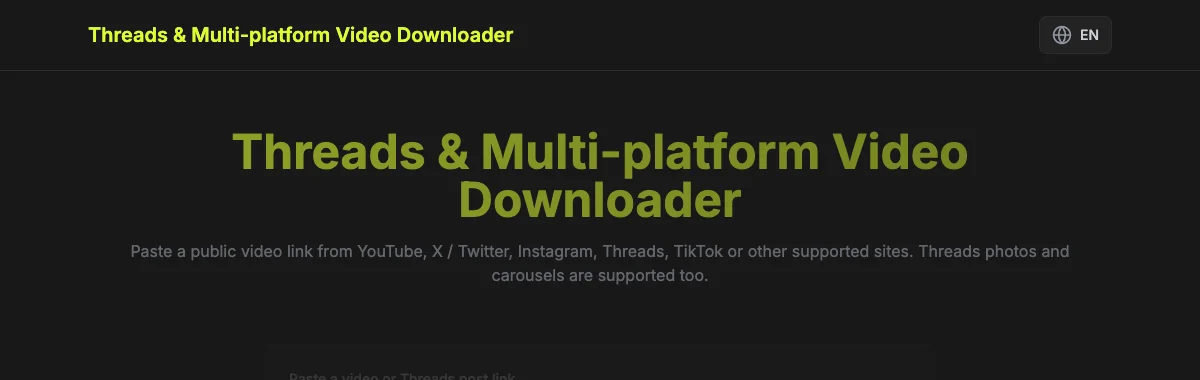
Keep the page open through parsing and saving. The first Download button requests the post’s attachments; it does not mean a file has reached your device. A result list is the sign that parsing worked. If it never appears, investigate the link or post accessibility before looking for a missing file.
Step 2: Paste the complete post address
Open the specific post in Threads and copy its link from sharing or the browser address bar. Paste the entire HTTPS address into the field. A typical post link contains /post/ and a post code; a profile stops at the username. Keep the post code intact.
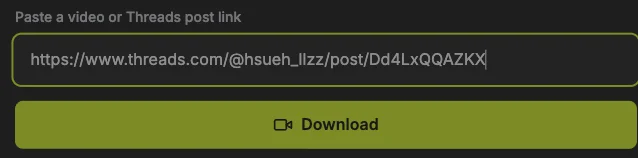
Compare the address with the screenshot, using your own post rather than the example. Sharing parameters can remain. If the photo or video is inside a reply or quoted post, open that media’s own post first. Copying the surrounding conversation can select different attachments.
Step 3: Load and inspect the attachments
Press the Download button below the URL field once. Wait for the result summary and previews. Read the attachment count, then check the first item and its format. This is the analysis stage; a video poster or an image on this page is not evidence that a file has been saved.
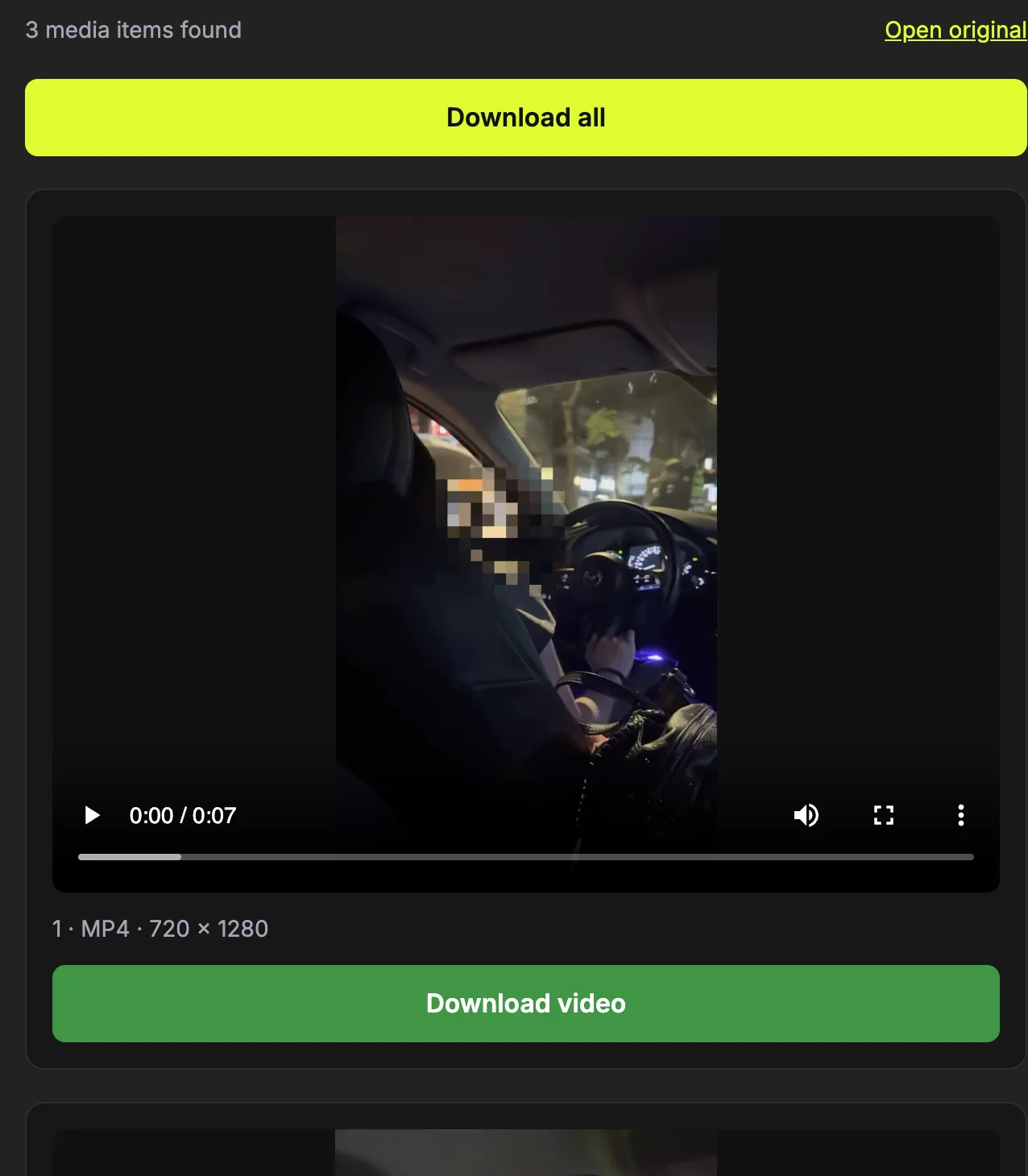
Use Open original to compare the result with the requested post if the count is unexpected. A video thumbnail belongs to that video and should not be counted as an extra photo. If there is an error instead of previews, note the exact message and correct the input or source access before repeating the request.
Step 4: Choose and save an image file
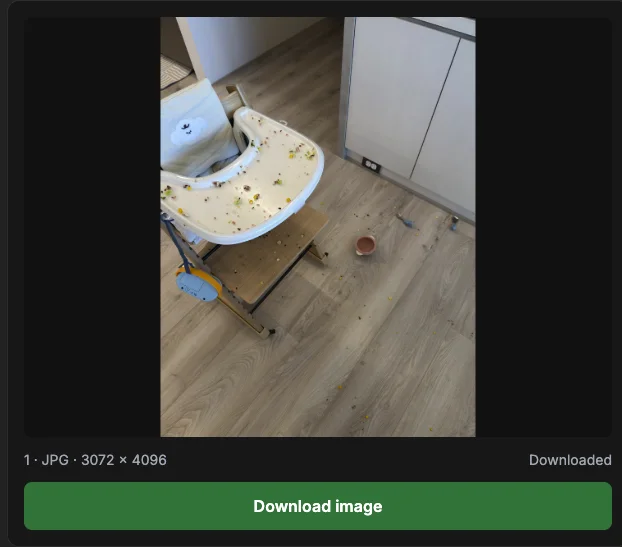
Find the photo preview and check the image format and attachment number below it. Press Download image to save the available file. A mixed post can include videos, so use the button associated with the intended photo rather than assuming the first preview is an image.
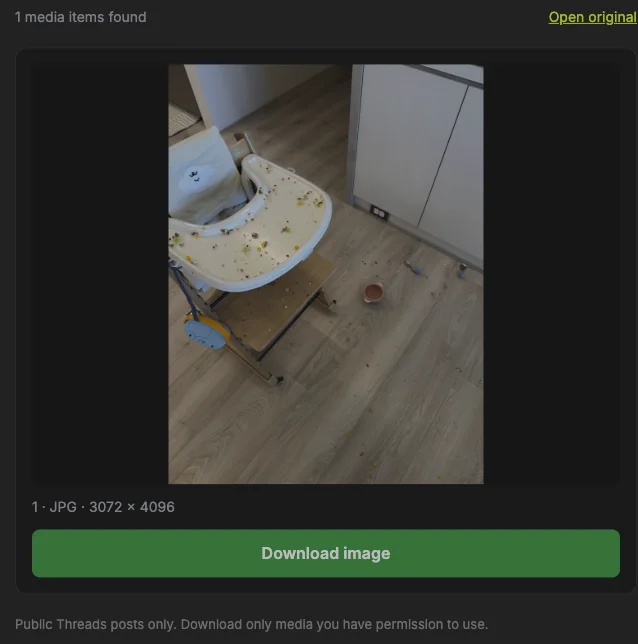
The shown width and height describe the image once it loads. Save the file, then open it in an image viewer to inspect detail. Do not change its extension merely to make it appear to be PNG; a different name does not convert the image format or reverse source compression.
Step 5: Compare an image file with the displayed screen
Look at the photo preview and note what the surrounding page adds: buttons, text, spacing and a scaled display. A screenshot records the screen composition. Download image retrieves the available image file, so the two actions preserve different information.
Open the saved image and compare its dimensions and visible detail with the screen view at similar zoom. More pixels do not prove more meaningful detail, and cropping a screenshot cannot restore pixels that were never displayed. Choose a screenshot for context and the file for the image itself.
Step 6: Keep the post code and item number when organizing
A typical filename is threads_POSTCODE_2.jpg or threads_POSTCODE_1.mp4. Match its number with the preview before renaming or moving it. For a multi-item post, those numbers are a simple way to reconstruct the order without relying on the file manager’s date sort.
Create your own destination folder if useful, and preserve the extension. Repeating a download may cause the browser to add a suffix to avoid a name collision. Treat that suffix as a duplicate indicator, not a new attachment number. Keep the original post link alongside any file you plan to reuse.
What a screenshot includes
A screenshot may include buttons, captions, margins or a scaled preview. Cropping removes interface elements but cannot recover details never displayed on the screen. For a reference that intentionally includes the post layout, a screenshot can still serve a different purpose.
What an image download provides
ThreadsDL selects a large available image variant from the linked public post. The file keeps its available format, commonly JPEG. It is not necessarily the creator’s original upload and does not remove compression already introduced by the source.
Related guide: How to download Threads photos and carousels
Compare dimensions, not just apparent size
Check pixel width and height in the preview or image viewer. In our supplied-photo verification, the saved JPEG measured 3072×4096. This is one verified file, not a minimum size or promise for other posts. More pixels alone do not prove that an image has more useful detail.
Related guide: Threads video quality and audio: what an MP4 contains
Choose the file for the intended job
Save an image file for an authorized archive or publication asset, and preserve the original post link. If the image belongs to a reply or quote, use its own post link. A screenshot and a download both require you to confirm permission before republishing someone else’s work.
Related guide: Find and copy the right Threads post link
How to confirm the result
- You chose screen context or image-file content deliberately.
- You compared actual pixel dimensions at a similar zoom.
- The original post link and necessary reuse permission are preserved.
Questions about this workflow
Is an image download always sharper?
Not necessarily. It can expose more pixels than the displayed preview, but existing source compression or blur remains. Compare useful detail and dimensions rather than declaring a universal quality improvement.
Can cropping recover lost detail?
No. Cropping removes surrounding content; it does not reconstruct pixels absent from a screenshot. If you need the available photo file, use its download button and inspect the result.
Which should I keep for an archive?
Keep the file when the image itself is your authorized target, and the screenshot if its displayed context matters. Recording the original post link helps keep those two forms understandable later.
Sources and screenshot notes
ThreadsDL production screenshot, 30 September 2026. Use your own public post; previews vary.
Screenshots use the public video and photo examples listed in the measurement record. They document the controls and observed results, not universal compatibility.