How to download Threads photos and carousels
Paste a public Threads photo post link into ThreadsDL. Each image appears with a preview and Download image button. For a carousel, select one image or use Download all to save separate files in order.
Open downloaderA photo archive is easier to organize when each file can be traced to its source post and attachment number. Here you will select an actual image, check its available format and inspect the saved dimensions. The screenshot is useful for recognizing controls, but it is not a substitute for checking your own file and its permitted use.
Before you begin
- A public post containing the relevant media and its complete link.
- A browser with file-download permission, a stable connection and enough free storage.
- Permission for the intended use; keep the original post address with your saved files.
Step-by-step walkthrough
Step 1: Open the downloader and prepare a small test
Open ThreadsDL in a regular browser tab. The current home page also accepts other video platforms, but this walkthrough uses the Threads post field and its image/video previews. Start with one public post and enough storage for one file before attempting a whole carousel.
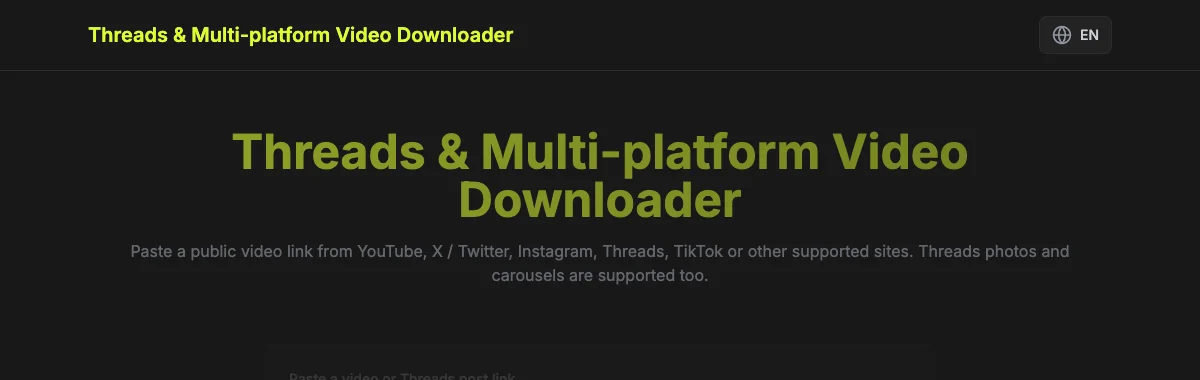
Keep the page open through parsing and saving. The first Download button requests the post’s attachments; it does not mean a file has reached your device. A result list is the sign that parsing worked. If it never appears, investigate the link or post accessibility before looking for a missing file.
Step 2: Paste the complete post address
Open the specific post in Threads and copy its link from sharing or the browser address bar. Paste the entire HTTPS address into the field. A typical post link contains /post/ and a post code; a profile stops at the username. Keep the post code intact.
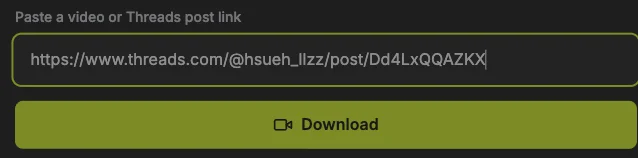
Compare the address with the screenshot, using your own post rather than the example. Sharing parameters can remain. If the photo or video is inside a reply or quoted post, open that media’s own post first. Copying the surrounding conversation can select different attachments.
Step 3: Load and inspect the attachments
Press the Download button below the URL field once. Wait for the result summary and previews. Read the attachment count, then check the first item and its format. This is the analysis stage; a video poster or an image on this page is not evidence that a file has been saved.
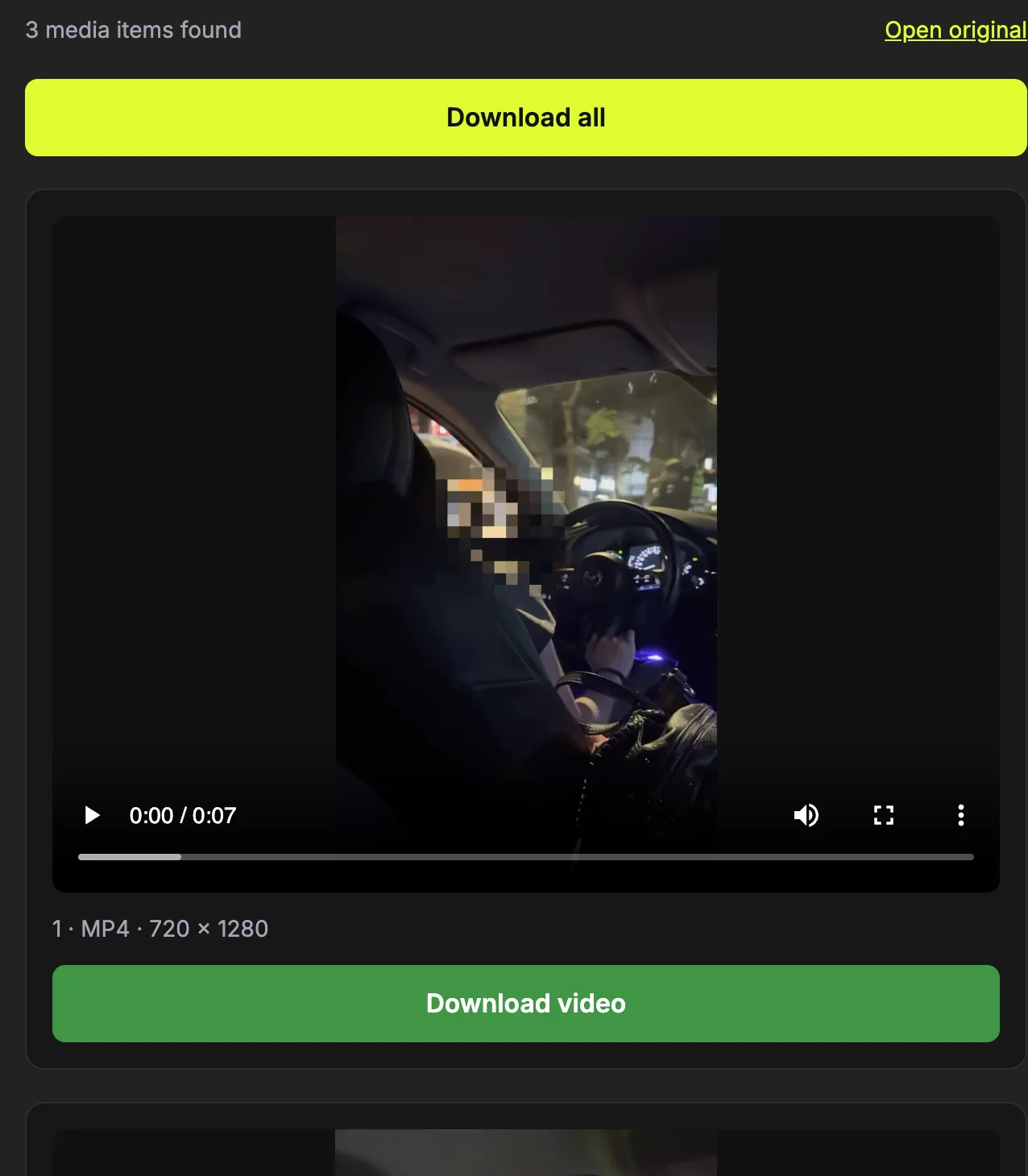
Use Open original to compare the result with the requested post if the count is unexpected. A video thumbnail belongs to that video and should not be counted as an extra photo. If there is an error instead of previews, note the exact message and correct the input or source access before repeating the request.
Step 4: Choose and save an image file
Find the photo preview and check the image format and attachment number below it. Press Download image to save the available file. A mixed post can include videos, so use the button associated with the intended photo rather than assuming the first preview is an image.
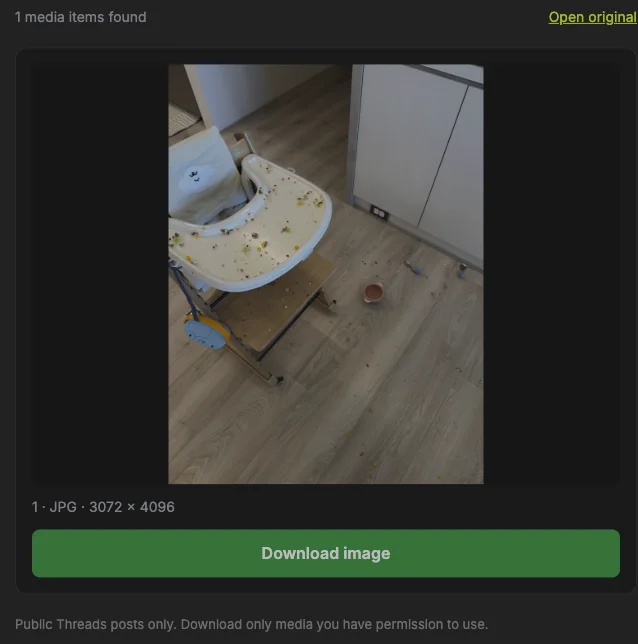
The shown width and height describe the image once it loads. Save the file, then open it in an image viewer to inspect detail. Do not change its extension merely to make it appear to be PNG; a different name does not convert the image format or reverse source compression.
Step 5: Wait for the save and inspect the actual file
Watch the preparation status and wait for Downloaded. Then check the browser’s completed downloads and open the saved file. This second check matters: the site status describes its transfer, while the browser manages the final filename and destination on your device.
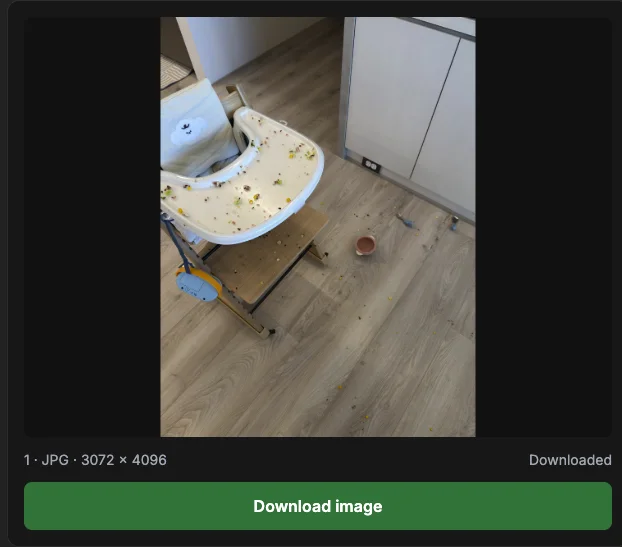
For a video, play the beginning and a later point; for an image, open it at a useful zoom. Record the filename before moving it. If the browser entry is incomplete or reports an error, do not treat a visible preview as a successful save. Retry the affected item after checking the connection and storage.
Download the image file rather than a screenshot
A screenshot captures what is displayed on your screen, including interface elements and screen-sized detail. Download image retrieves the available media file instead. ThreadsDL selects the largest image variant it can read from the public post, but this is not a promise that the creator’s original upload is available.
Related guide: Threads image download vs screenshot: detail and file choice
Choose photos in a mixed carousel
A post may contain photos and videos together. ThreadsDL keeps the attachment order and labels each item with its format. A video’s preview thumbnail is not offered as a separate photo download. Review the preview before choosing an individual item, or use Download all for the entire post.
Related guide: Download a Threads carousel: choose items and save all
Formats and filenames
Images retain their available format, commonly JPEG. The filename includes the post code and attachment position so you can distinguish several files from the same post. The downloader does not bundle a carousel into a ZIP or convert every file to PNG. Keep the format extension when renaming files.
Check dimensions after downloading
The image preview shows decoded dimensions once it loads. You can also inspect the downloaded file in an image viewer. A large pixel count does not guarantee detail absent from the source. The tool does not upscale, sharpen or recreate the image.
If a photo is missing
Check that it belongs to the linked post rather than a reply or quoted post. Open its original post and copy that link instead. Private, deleted or inaccessible photos cannot be restored with this tool. Obtain permission before using another creator’s image in a publication.
Related guide: Find and copy the right Threads post link
How to confirm the result
- An image file opens in a viewer, rather than a saved web page.
- The attachment number matches the chosen photo in the post.
- The extension and decoded dimensions agree with the file information.
Questions about this workflow
Why did I get MP4 instead of a photo?
You may have selected a video in a mixed carousel. Use the photo preview and its image button. A video cover is not returned as an independent photo attachment.
Can renaming JPEG to PNG improve it?
No. A filename change does not convert the data or restore compressed detail. Keep the supplied extension unless you deliberately convert it with a separate image editor.
Should I download all to get one image?
No. Use the selected image’s button when you need one file. Save all is useful only if you want every listed attachment and are ready to check each browser download.
Sources and screenshot notes
ThreadsDL production screenshot, 30 September 2026. Use your own public post; previews vary.
Screenshots use the public video and photo examples listed in the measurement record. They document the controls and observed results, not universal compatibility.